
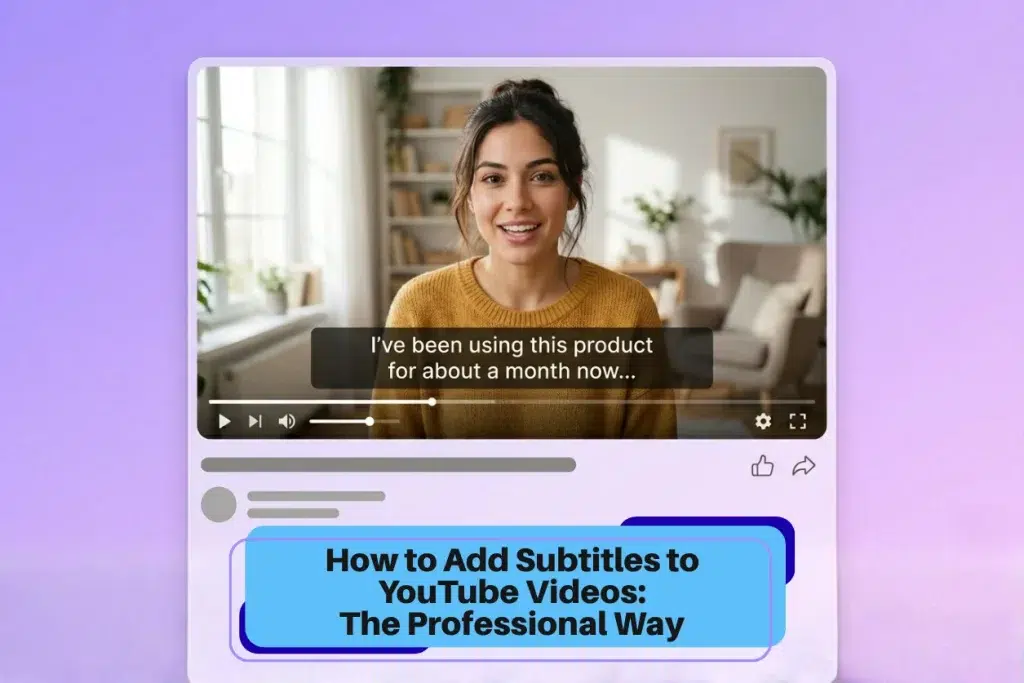
How to Add Subtitles to YouTube Videos: The Professional Way (SRT, VTT & Beyond)
This blog explains how to add subtitles to YouTube videos — covering everything from uploading SRT files and using YouTube Studio’s built-in tools to understanding the difference between closed captions, open captions, and translated subtitles. Whether you are a content creator looking to reach a wider audience, a brand distributing product demos globally, or a business that needs professionally timed, multilingual captions, this guide walks you through every method — and explains when a professional subtitling service delivers results that no auto subtitle generator can match.
Why Subtitles and Captions Matter More Than Ever
More people watch videos without sound than most creators realise. Viewers scroll through social feeds in public spaces, at work, or in quiet environments where audio is not an option. Without subtitles, your video content is effectively silent for a large portion of your audience — and those viewers will simply move on.
Beyond accessibility, subtitles have a measurable impact on reach and discoverability. YouTube indexes the text in your subtitle file, which means accurate captions add searchable keywords to your video. This improves rankings both within YouTube and on Google, helping new viewers find your content. For non native speakers, subtitles are often the difference between understanding your message and clicking away. For viewers who are deaf or hard of hearing, closed captions are not just an added feature—they are essential for accessing and fully experiencing your video content.
For brands running video ads, product demos, or corporate training content across a global audience, professional subtitles are not optional. They are the foundation of effective multilingual communication.
How to Add Subtitles to YouTube Videos: The Main Methods
There are several ways to add subtitles to a video on YouTube. Each has its place depending on your content type, budget, and quality requirements.
1. Upload a Subtitle File (SRT, VTT & Other File Formats)
The most reliable method for accurate subtitles is to upload a subtitle file directly through YouTube Studio. Here is how:
- Sign in to YouTube and go to YouTube Studio.
- Select your video from the Content tab in the left menu.
- Click Subtitles in the left menu.
- Choose the language and click Add under Subtitles.
- Select Upload File, choose With timing, and upload your SRT file or VTT file.
- Review the subtitle line timings, make any edits needed, and publish.
Understanding the file formats before you upload saves time. An SRT file (SubRip Subtitle) is the most universally supported format — it works across YouTube, Vimeo, Facebook, and most other video platforms. A VTT file (WebVTT) supports additional styling such as text positioning and is the standard for HTML5 web video players. YouTube accepts both, along with several other file formats including SBV and TTML. For most use cases, SRT is the safest and simplest choice.
2. Use Automatic Captions and Edit Subtitles in YouTube Studio
YouTube can auto generate subtitles using automatic speech recognition technology. To enable auto subtitles, go to your video in YouTube Studio, click Subtitles in the left menu, and select the auto-generated captions option if available. You can then edit subtitles line by line to correct any errors.
Automatic captions are a useful starting point, particularly for longer videos where manually typing every line would be time-consuming. However, auto generate subtitles features — even those powered by advanced speech recognition technology — are not reliable enough for professional use. Accuracy drops considerably with accents, technical terminology, overlapping speakers, background noise, or fast speech. If you click add and publish auto-generated content without reviewing it thoroughly, errors will reach your viewers.
The edit subtitles function in YouTube Studio lets you fine tune each subtitle line, adjust timing, and correct misheard words. For shorter videos, this is manageable. For longer videos with multiple speakers, it quickly becomes labour-intensive.
3. Create Subtitles Manually in YouTube Studio
YouTube also allows you to create subtitles entirely from scratch by typing them directly in the subtitle editor. Select your video, click Subtitles in the left menu, choose your language, and click Add then Type manually. You will watch the video and add text in sync with the audio, setting the start and end time for each subtitle line.
This method gives you the most control over subtitles text, timing, and formatting. It is also the most time-intensive — a ten-minute video can take an hour or more to subtitle manually with proper synchronisation. Most creators and businesses reserve this approach for short, high-priority content where every word carries significant weight.
Open Captions vs. Closed Captions: What Is the Difference?
Closed captions are stored as a separate subtitle file and can be toggled on or off by the viewer. They appear when a viewer clicks the CC button on the video player. Closed captions are the default on YouTube and are the standard for accessibility compliance.
Open captions — sometimes called hardcoded subtitles — are burned directly into the video itself. Viewers cannot turn them off. Hardcoded subtitles are common for social media video ads and short-form content where you want captions to be always visible, particularly when videos autoplay silently. The trade-off is that you cannot update them without re-editing and re-uploading the video, and adding multiple languages requires separate video files.
For most YouTube content, closed captions are the better choice. They make the video accessible without affecting viewers who prefer to watch without text on screen, and they allow you to add subtitles in multiple languages to a single upload.
When to Use a Professional Subtitling Service Instead
For creators publishing occasional personal content, YouTube’s built-in tools are often sufficient. But for businesses, media companies, e-learning providers, and brands distributing video content across a global audience, the limitations of self-serve subtitling become clear quickly.
Professional subtitling services offer accuracy that automatic captions cannot match, particularly for content involving multiple speakers, specialised terminology, regional accents, sound effects notation, or translations into multiple languages. A professionally produced subtitle file is timed to the frame, reviewed by native-speaking linguists, and delivered in whichever file formats your distribution channels require — whether that is SRT for YouTube, VTT for your website, or proprietary formats for broadcast platforms.
For multilingual subtitles specifically, professional services are not just better — they are a different category of output entirely. Translating subtitles accurately requires understanding cultural context and idiomatic expression, not just converting words from one language to another. This is where automated tools consistently fall short, and where professional expertise consistently delivers.
DUBnSUB provides professional subtitling and captioning services in 100+ languages for YouTube, OTT platforms, corporate video, e-learning, and broadcast content. Contact us to discuss your project.
Frequently Asked Questions (FAQs)
1. How do I add subtitles to a YouTube video I have already uploaded?
Go to YouTube Studio, select your video from the Content section, and click Subtitles in the left menu. Choose your language, click Add under the Subtitles column, and either upload a subtitle file, use automatic captions as a starting draft, or type your captions manually. You can edit subtitles at any time without re-uploading the video.
If you need professionally timed and formatted captions for a video already on your channel, DUBnSUB can produce a ready-to-upload SRT file or VTT file in any language — so you simply upload it directly to YouTube Studio without any additional editing work.
2. What is the difference between SRT and VTT subtitle files?
An SRT file is the most widely compatible subtitle format — it works across YouTube, Facebook, Vimeo, and most video platforms. A VTT (WebVTT) file supports additional features like text positioning and styling, and is the standard format for HTML5 web video players. Both are plain text file formats that YouTube accepts. For most YouTube uploads, SRT is the simplest and most reliable choice.
DUBnSUB delivers subtitle files in all major file formats including SRT, VTT, TTML, and broadcast-specific formats — so your captions work seamlessly across YouTube, your website, and any other platforms where your content is distributed.
3. Are YouTube’s automatic captions accurate enough for professional content?
YouTube’s automatic captions use automatic speech recognition technology and are useful as a rough draft, but they are not reliable enough for professional use without thorough editing. Accuracy drops with accents, background noise, technical terminology, and multiple speakers. Publishing auto-generated captions without review risks errors reaching your audience — which undermines both accessibility and your brand’s credibility.
DUBnSUB’s professional captioning service produces human-reviewed, frame-accurate subtitles with native-language quality assurance — a standard that no auto subtitle generator currently matches for professional or broadcast-grade content.
4. Can I add subtitles to YouTube videos in multiple languages?
Yes. YouTube allows you to add subtitles in multiple languages to a single video upload. In YouTube Studio, go to the Subtitles section for your video and add a new language — then upload a separate subtitle file for each language or use YouTube’s translation tools as a starting point. Each language version appears as a separate option for viewers who select subtitles on the video player.
DUBnSUB provides multilingual subtitling across 100+ languages, with native-speaking linguists handling translation and cultural adaptation for each target language. For brands reaching a global audience, this ensures your message lands accurately in every market — not just word-for-word, but with the right tone and context.
5. What are hardcoded subtitles and when should I use them?
Hardcoded subtitles — also called open captions — are burned directly into the video file, meaning viewers cannot turn them off. They are most commonly used for social media video ads and short-form content where videos autoplay silently and you want subtitles to be visible without the viewer needing to click anything. They are also useful for content shared on platforms that do not support separate subtitle files.
DUBnSUB can produce videos with hardcoded subtitles as part of a full post-production subtitling service — including accurate translation, precise timing, and styled text that matches your brand’s visual identity across languages.
6. How long does it take to add professional subtitles to a YouTube video?
The time required depends on the length of the video, the number of languages, and whether translation is needed. A single-language English SRT file for a short corporate video can typically be produced within 24 to 48 hours. Longer videos or multilingual projects may take three to five business days, depending on the language pairs and volume involved.
DUBnSUB offers standard and expedited turnarounds for professional subtitling projects, with dedicated project managers coordinating delivery across multiple languages simultaneously — so brands and content teams can meet upload deadlines without compromising on quality.
7. Do subtitles improve YouTube SEO?
Yes. YouTube and Google crawl the text in your subtitle file, which means accurate captions add indexable keywords to your video. Videos with subtitles consistently perform better in search results than those without, particularly for longer videos where rich transcribed content gives search algorithms more to work with. Subtitles also improve watch time — viewers who can follow along with captions tend to watch more of the video, which YouTube’s algorithm treats as a positive engagement signal.
Professionally produced subtitles from DUBnSUB are accurate, keyword-rich, and properly timed — giving your YouTube content the strongest possible foundation for both accessibility and search performance.